

Until your account is activated, a “Test mode · no real money” banner is shown: nothing you do collects real money. The screenshots on this page were taken in test mode, with the interface in French.
From the dashboard
1
Open "QR comptoir"
Sign in at app.yabetoo.com. In the Sales space, click QR comptoir in the menu (on a phone, open the menu with the three-line button at the top left).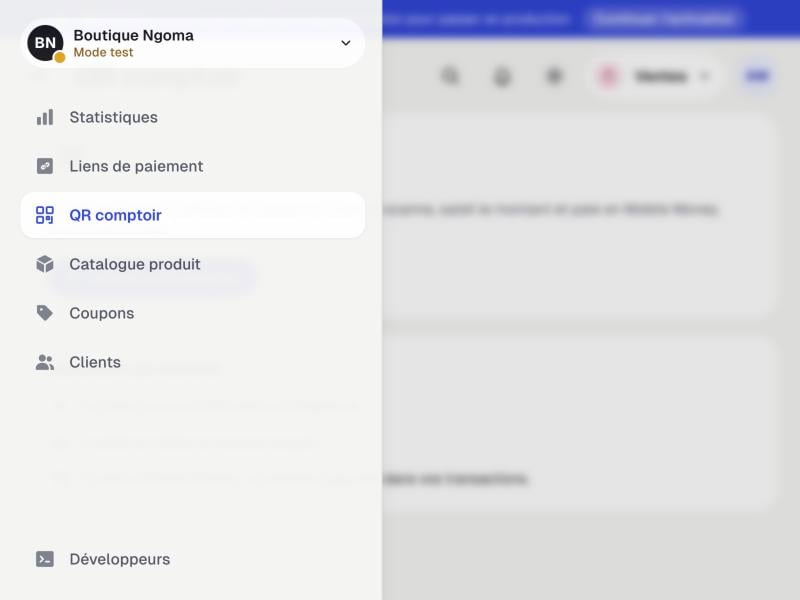
2
Activate your QR
Click Activer le QR comptoir. Yabetoo creates your QR in a second, nothing else to fill in.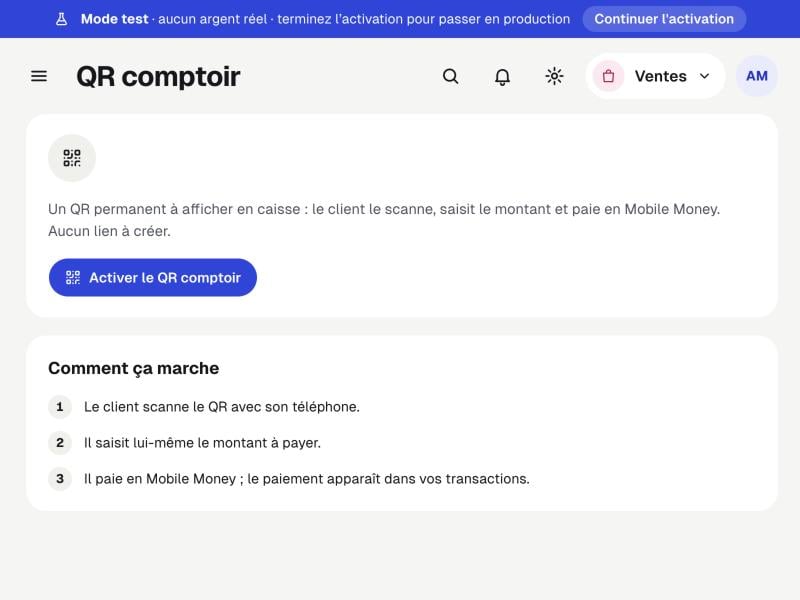
3
Your QR is ready
The QR carries the Yabetoo emblem. It stays the same forever, so you can print it safely.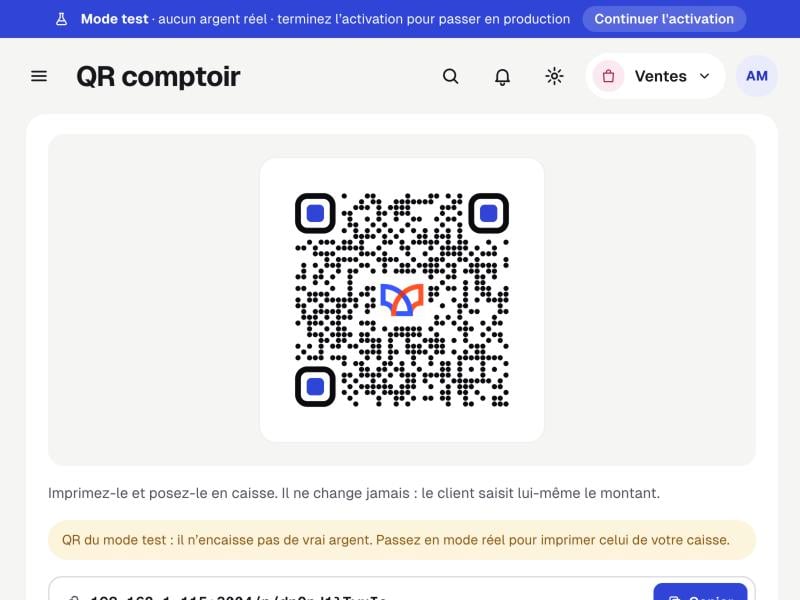
4
Print or download it
Print for a poster at the till, Download PNG for a flyer or sticker, Copy to send the payment link by WhatsApp or SMS.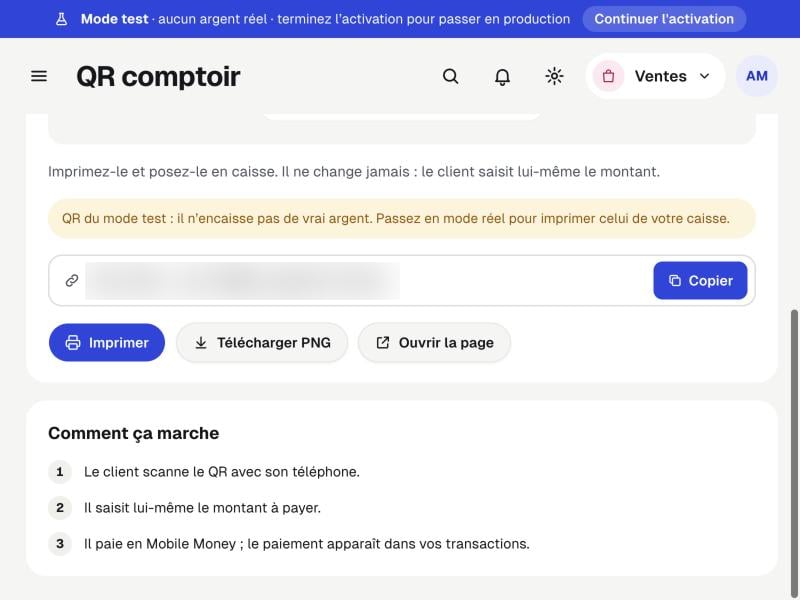
From the Yabetoo Business app
In the app, the counter QR is called “QR boutique”. It is the same QR as on the dashboard.1
+ button, then "QR boutique"
Tap the + button at the bottom of the screen, then QR boutique.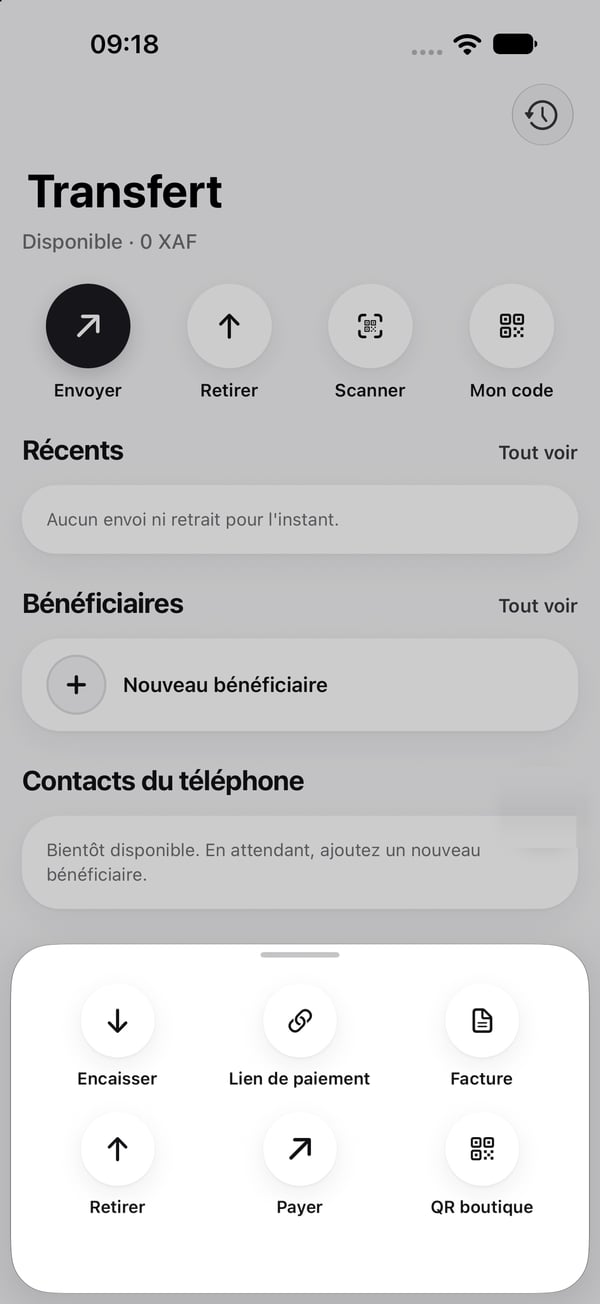
2
Activate it
Tap Activer le QR boutique.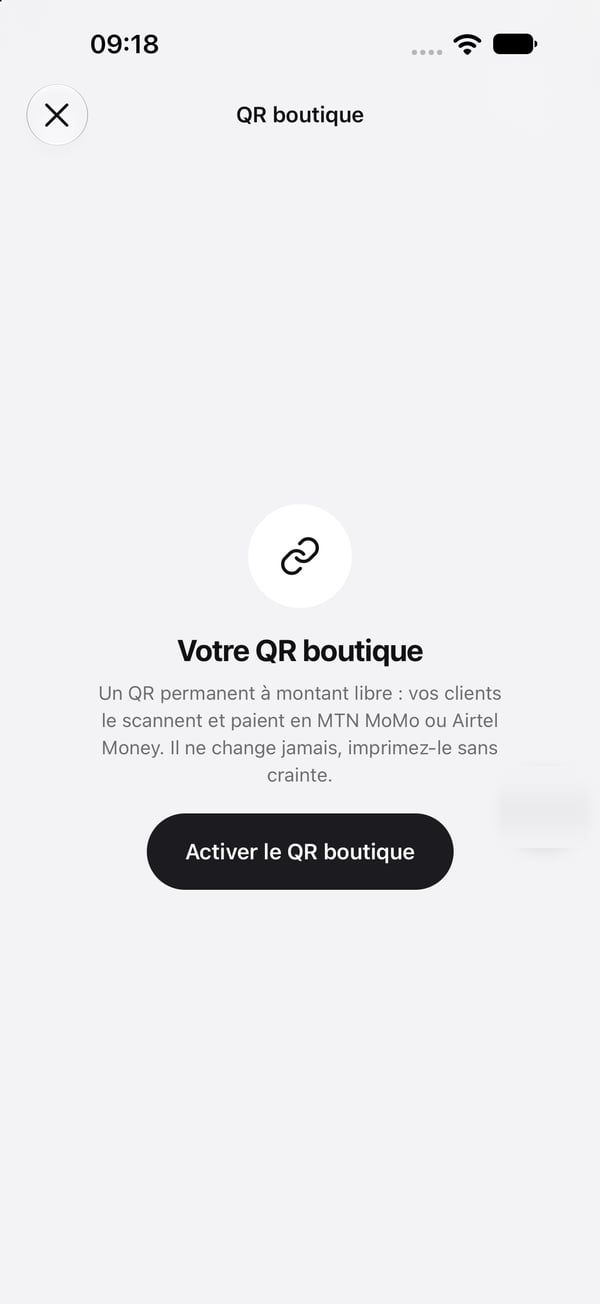
3
Share or save it
Send it by WhatsApp or SMS, download the image, or copy the link.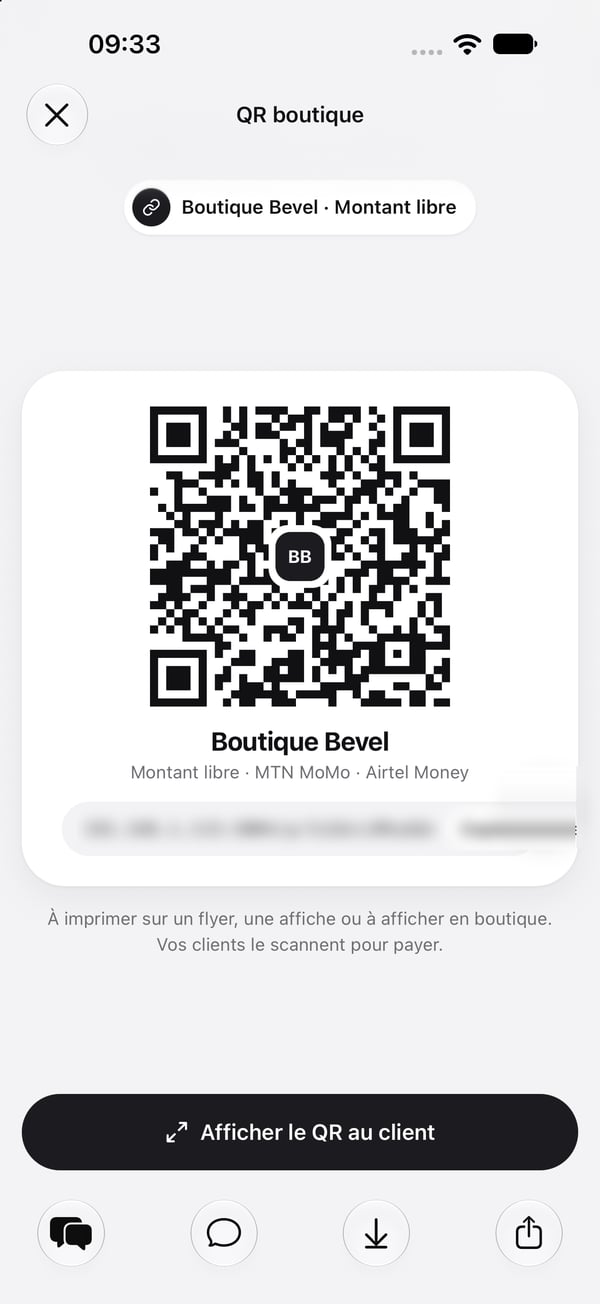
4
Show it to the customer
Afficher le QR au client shows it full screen: the customer scans it straight from your phone.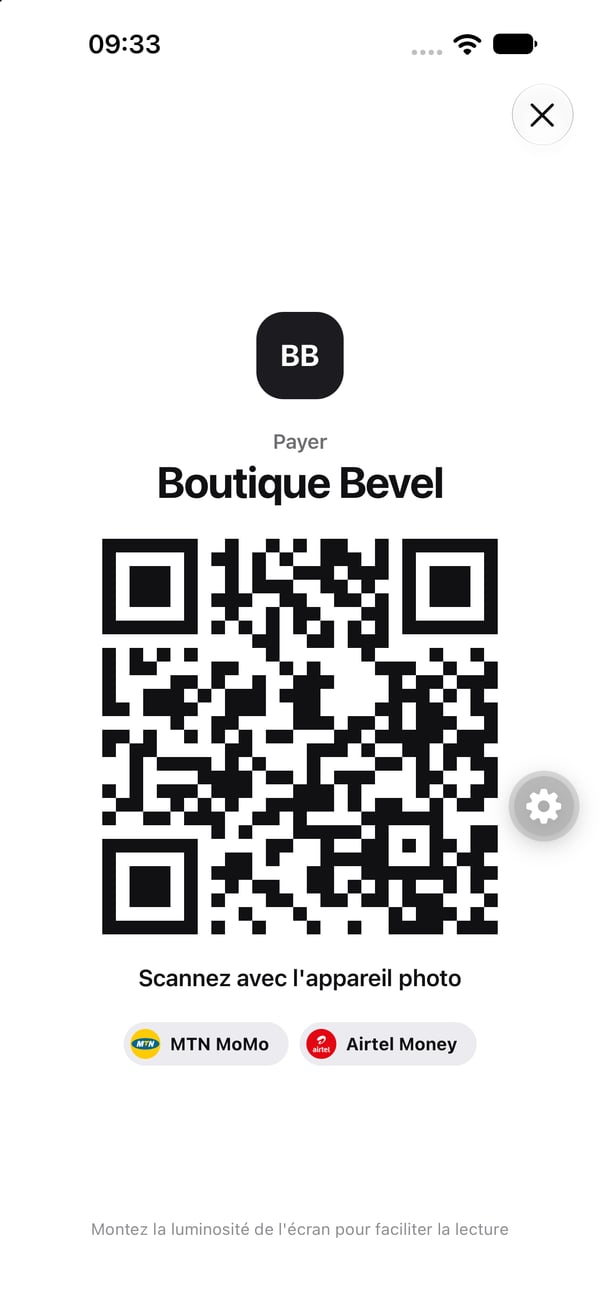
Get paid out after every payment
By default, collected money stays on your Yabetoo balance. With the “After every payment” payout, Yabetoo sends it to your Mobile Money number right after each payment. Your operator’s SMS (“You have received…”) is your confirmation: no need to look at the customer’s screen.1
Save your Mobile Money number
In the Payments space, open Comptes de versement (payout accounts) and tap Modifier Mobile Money to set the number that receives the money.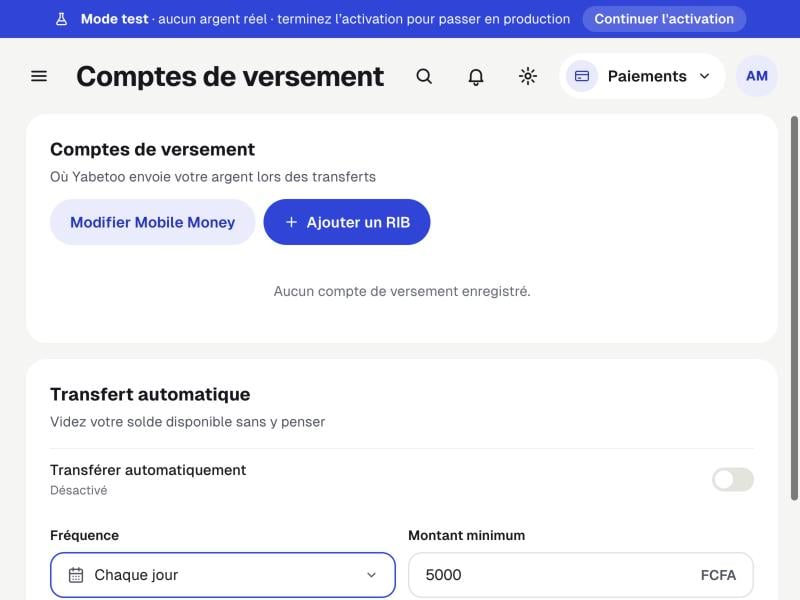
2
Choose "À chaque paiement"
Under Transfert automatique, turn on Transférer automatiquement and pick the À chaque paiement (after every payment) frequency. The minimum amount is the balance from which money is sent.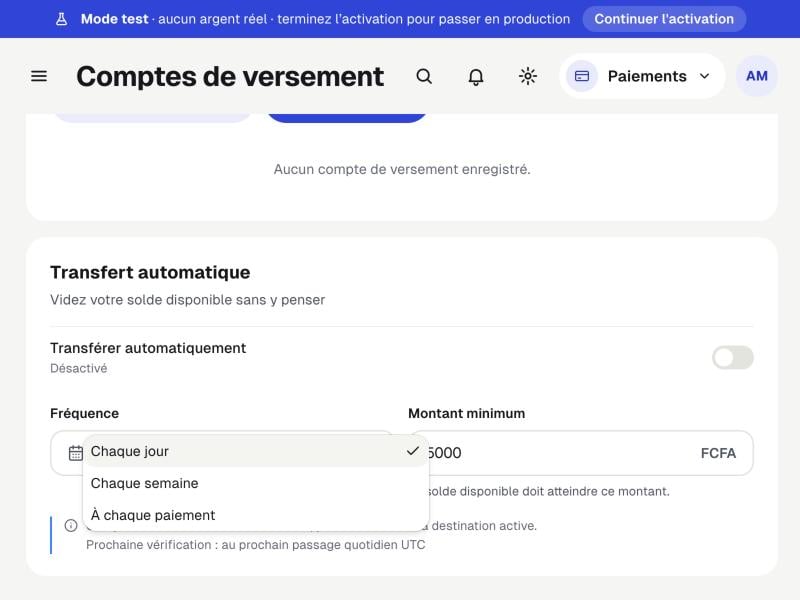
Automatic payouts only work in live mode, once your account is verified. Each payout follows the usual withdrawal fee. You can switch back to daily or weekly at any time.
What your customer sees
- They scan the QR with their phone camera.
- A Yabetoo page opens with your name: they enter the amount to pay.
- They choose MTN MoMo or Airtel Money and confirm with their PIN on their phone.
- The payment shows up in your transactions (and, with “after every payment”, lands on your Mobile Money).