

Before you start
- a Z91 terminal, charged and online (Wi-Fi or SIM card);
- the Yabetoo POS app on the terminal: the Yabetoo team installs it on delivery. If the icon is missing, contact Yabetoo support;
- your Yabetoo account (dashboard or Yabetoo Business app).
1. Link the terminal to your account
1
The terminal shows a code
Open Yabetoo POS: an 8-digit code and a QR appear. The code is valid for 10 minutes (otherwise tap “Générer un nouveau code”).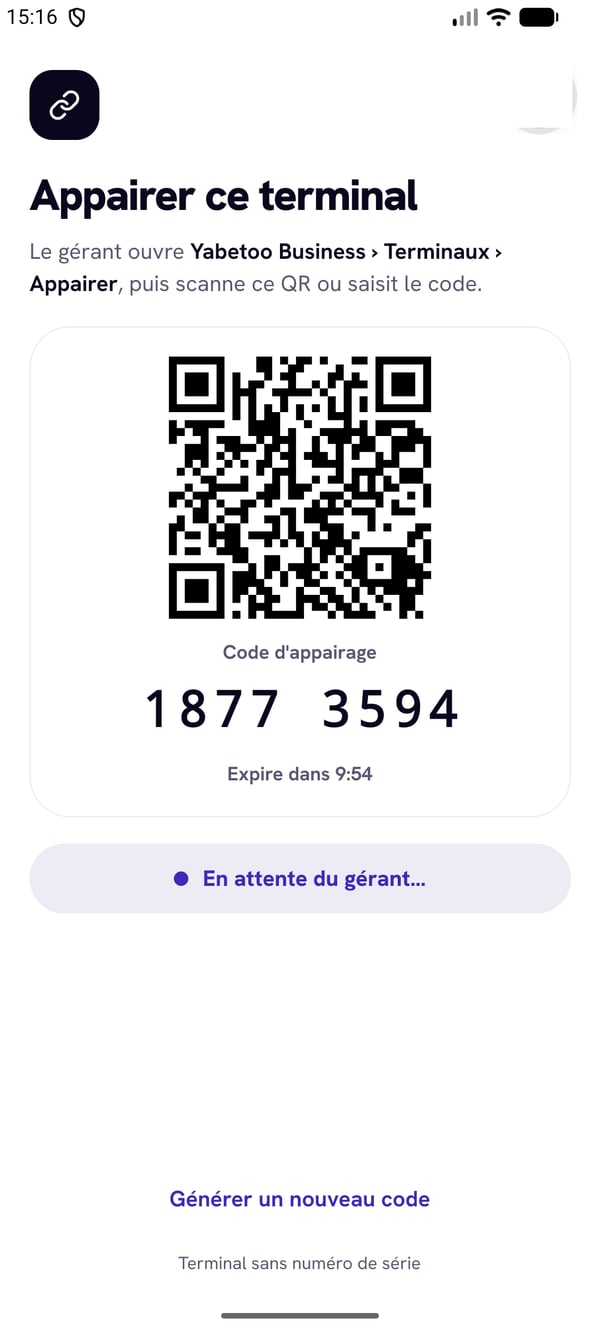
2
Open "Terminaux POS"
On the dashboard, go to Settings › Terminaux POS and click Appairer un terminal (pair a terminal).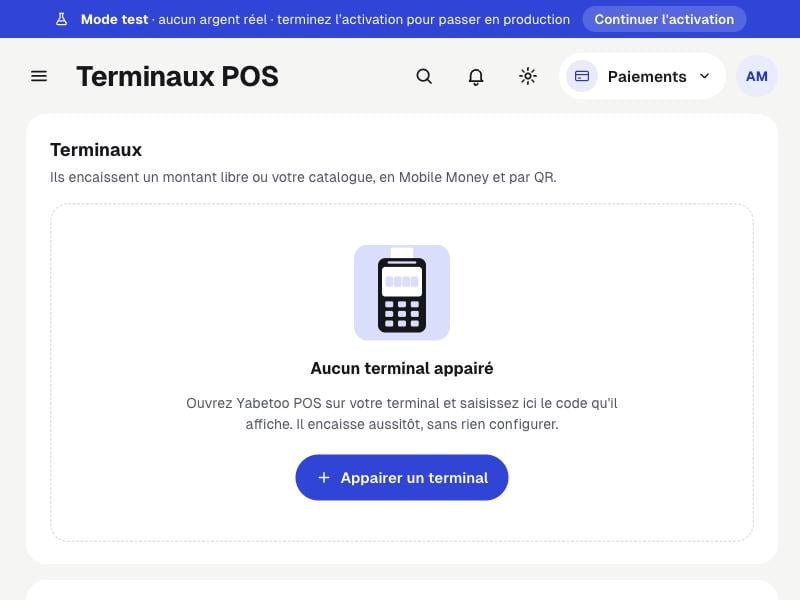
3
Enter the code and name the till
Type the code shown by the terminal, give it a name (“Caisse 1”) and click Appairer. The terminal connects by itself within seconds.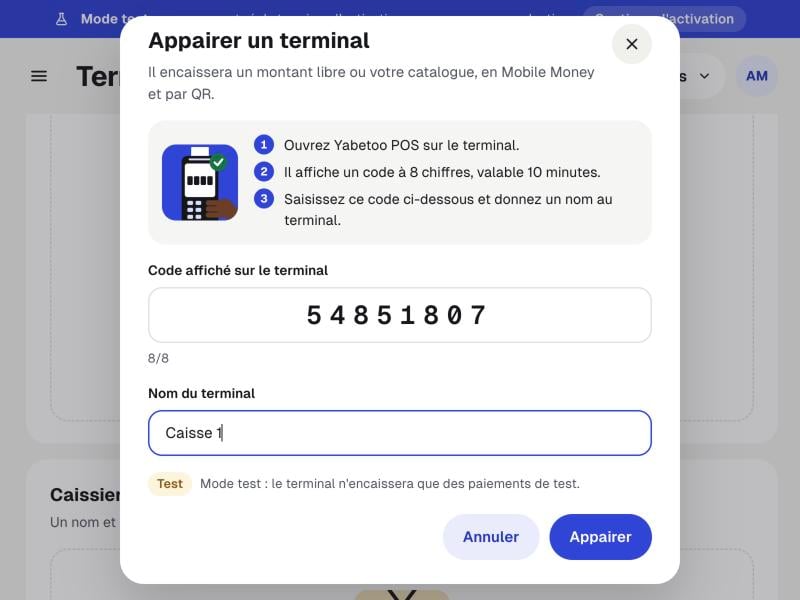
2. Create your cashiers
Everyone who takes payments has a name and a PIN. Cashiers apply to every terminal on the account.1
Add a cashier
In Terminaux POS, click Ajouter un caissier: name, role and a 4 to 6-digit PIN (no runs like 1234, no repeated digits). A Responsable (manager) can also approve refunds with their PIN.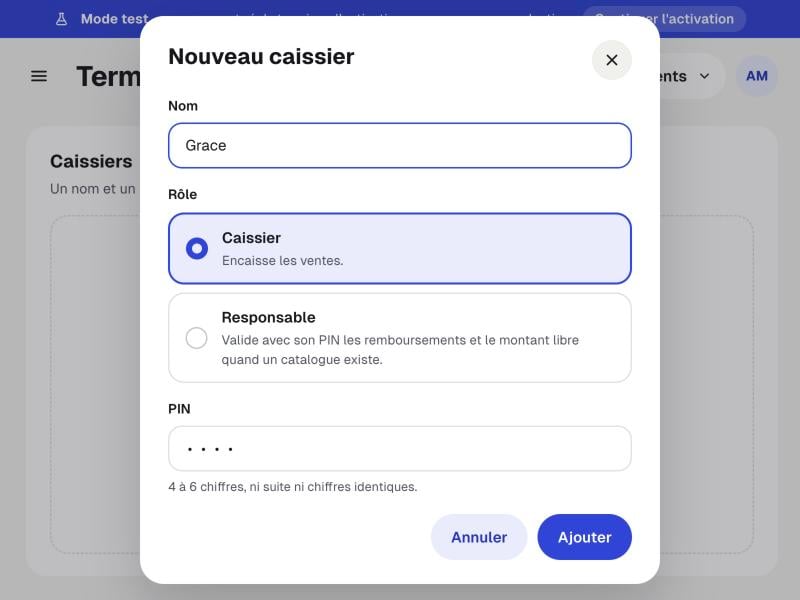
2
All set
The terminal shows as Actif and your cashiers are listed. You can revoke a lost terminal or edit a cashier at any time.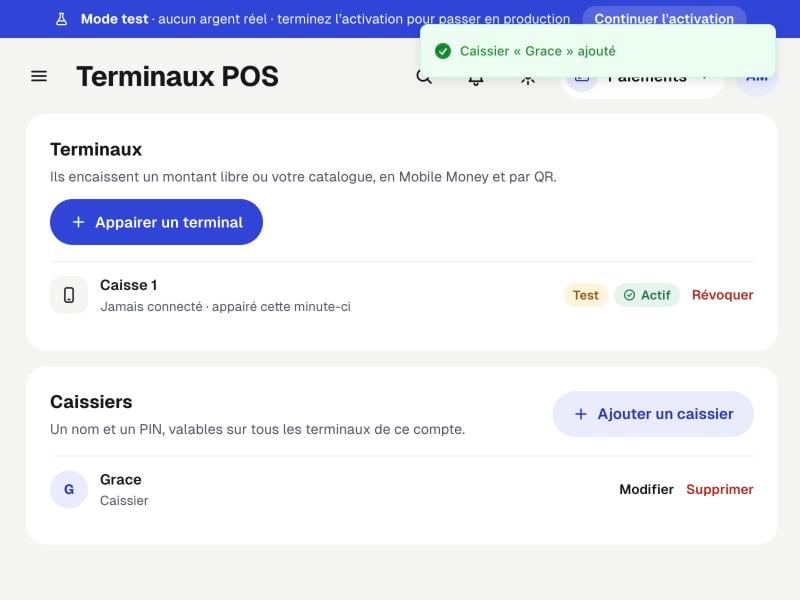
3. Take a payment
1
The cashier signs in
At the start of their shift, they pick their name and type their PIN. Forgot the PIN? Ask the manager.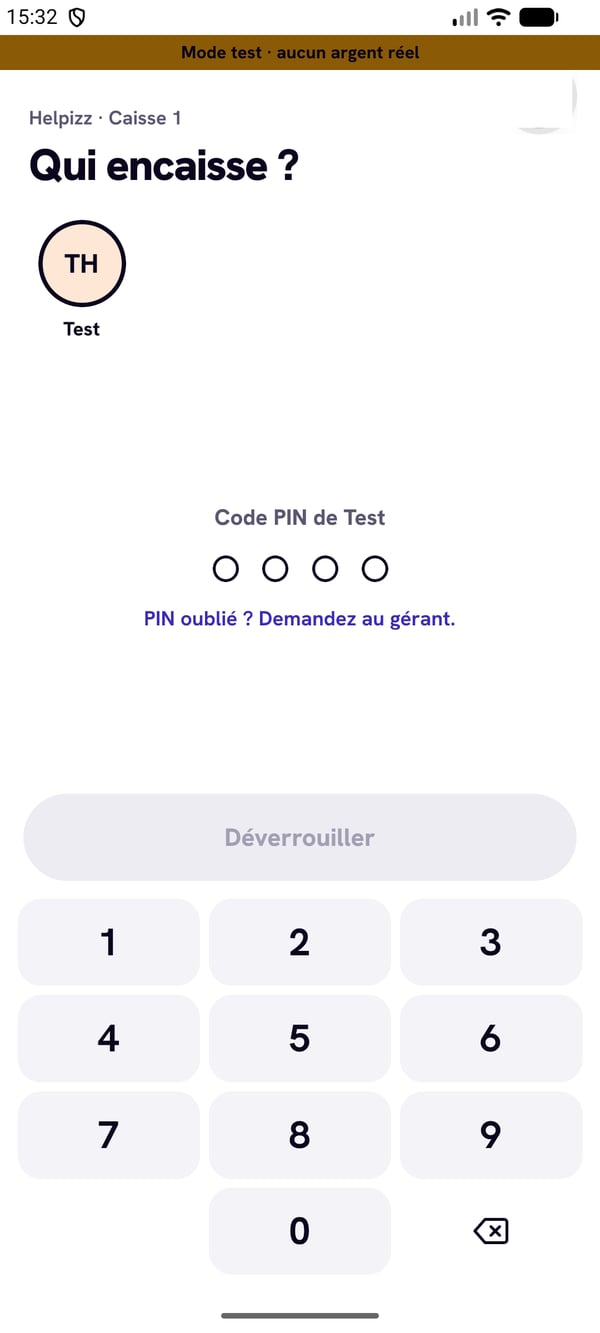
2
Enter the amount or add items
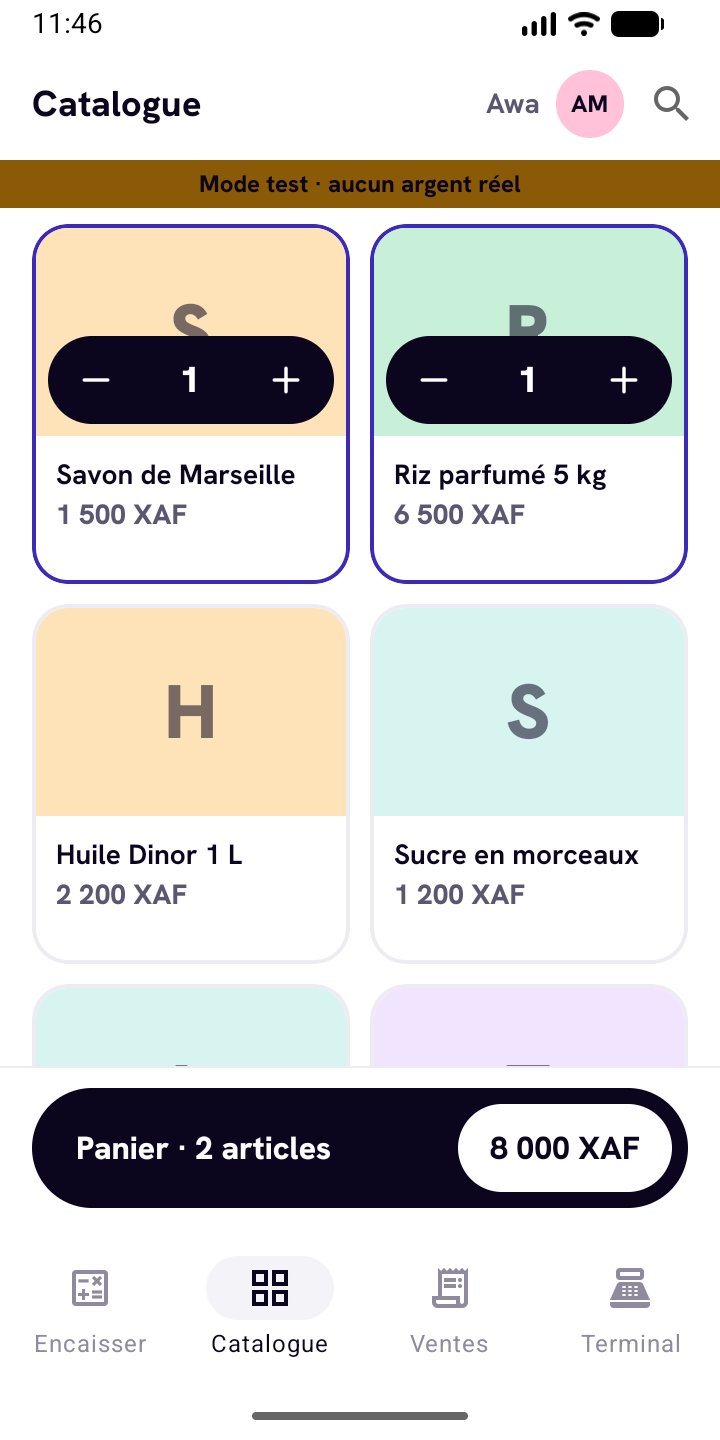
Type the amount on the keypad (and a label if needed), or use the Catalogue tab: the cart fills up at the bottom of the screen.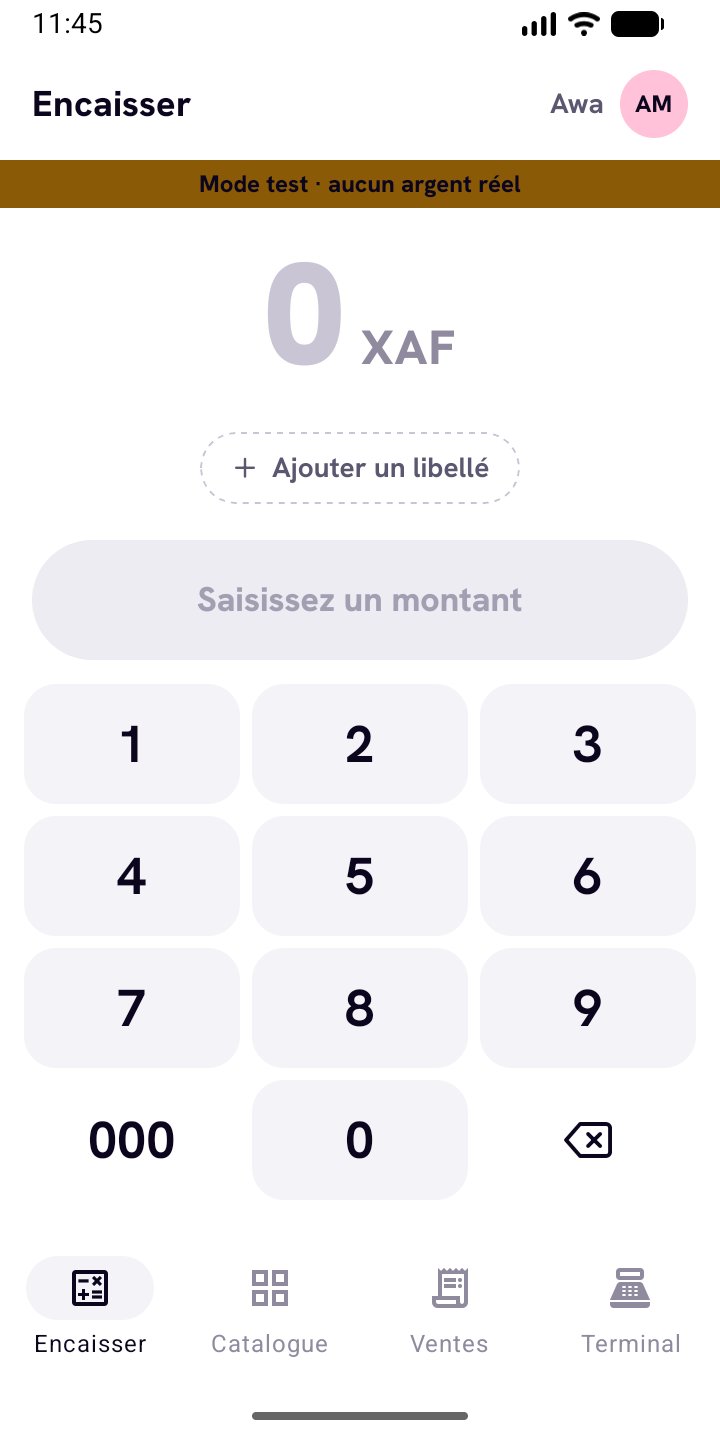
3
Choose the payment method
Mobile Money (the customer confirms on their phone) or QR code (the customer scans and pays).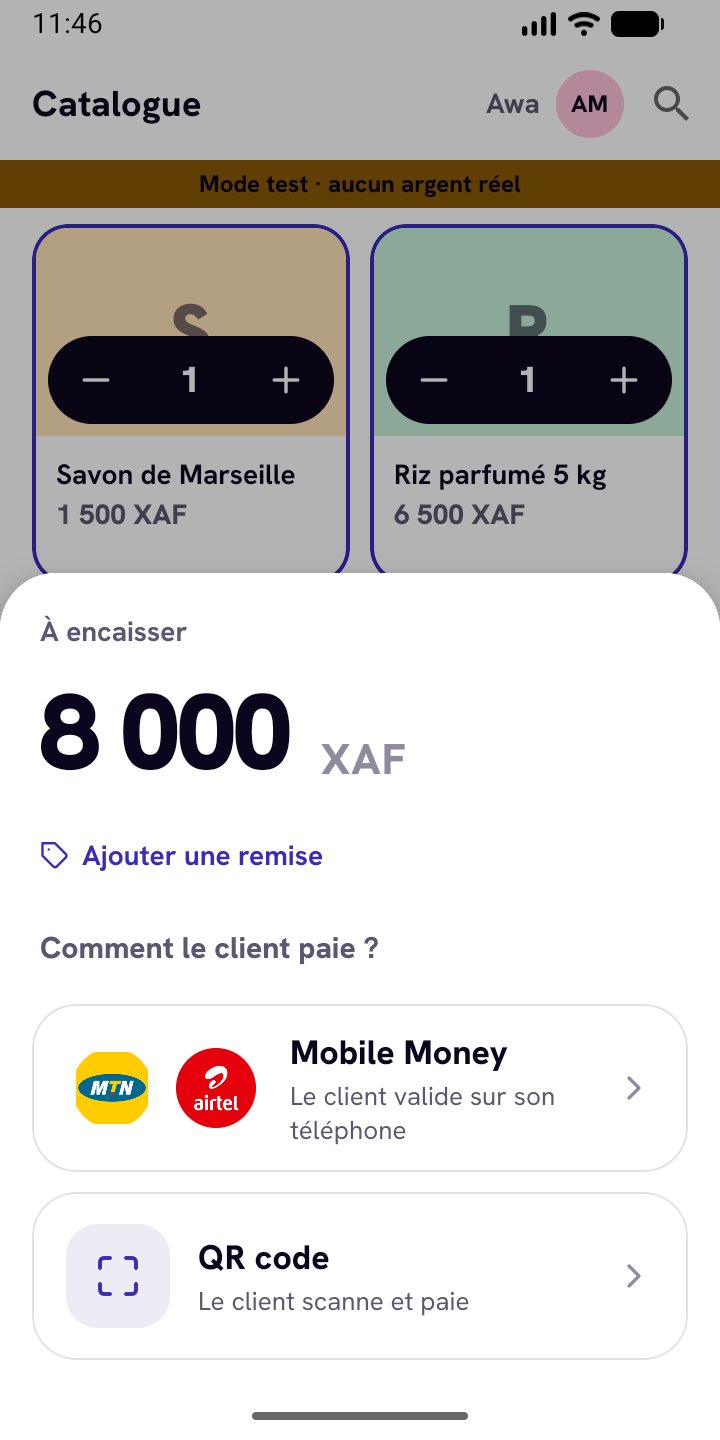
4
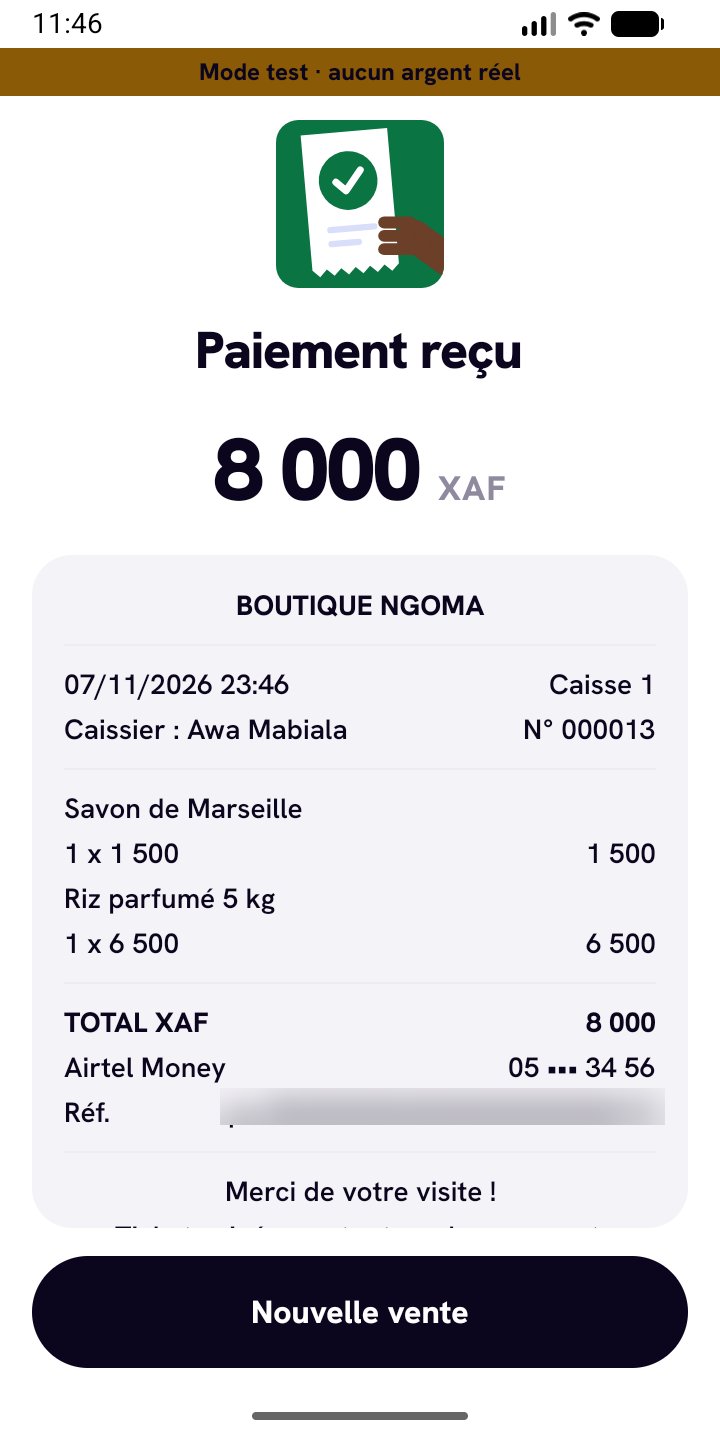
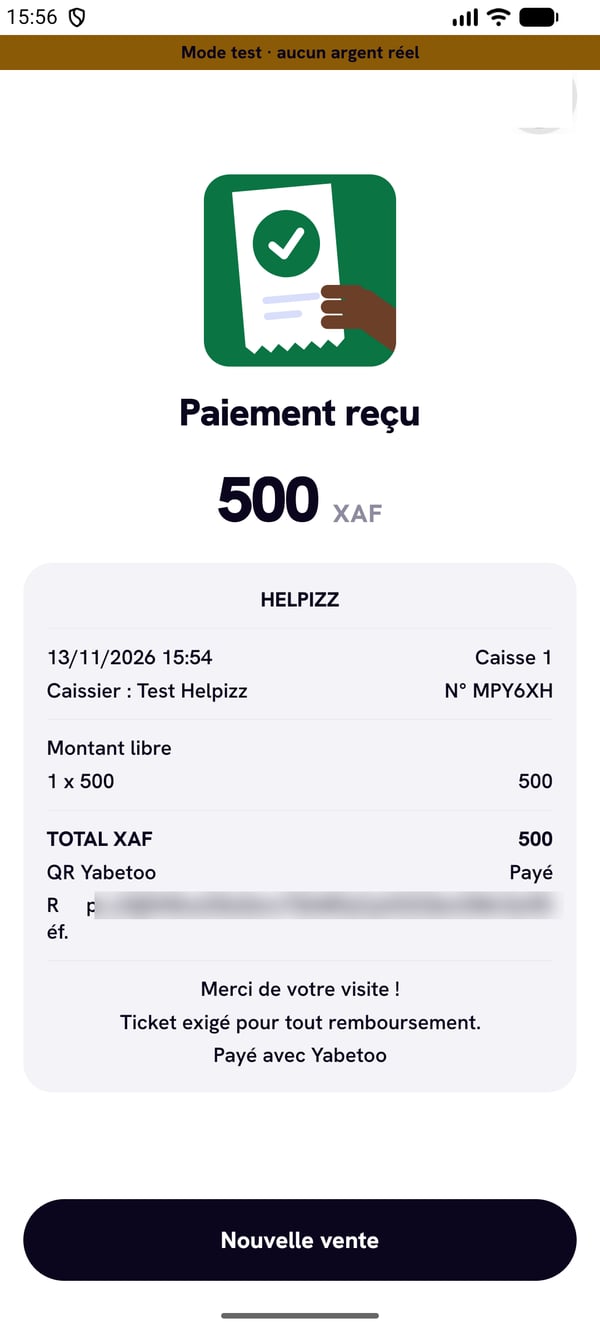
Mobile Money: payment received, receipt printed
Enter the customer’s number and tap Demander. The customer confirms with their PIN; as soon as the operator confirms, the screen turns green and the receipt prints. Tap Nouvelle vente for the next sale.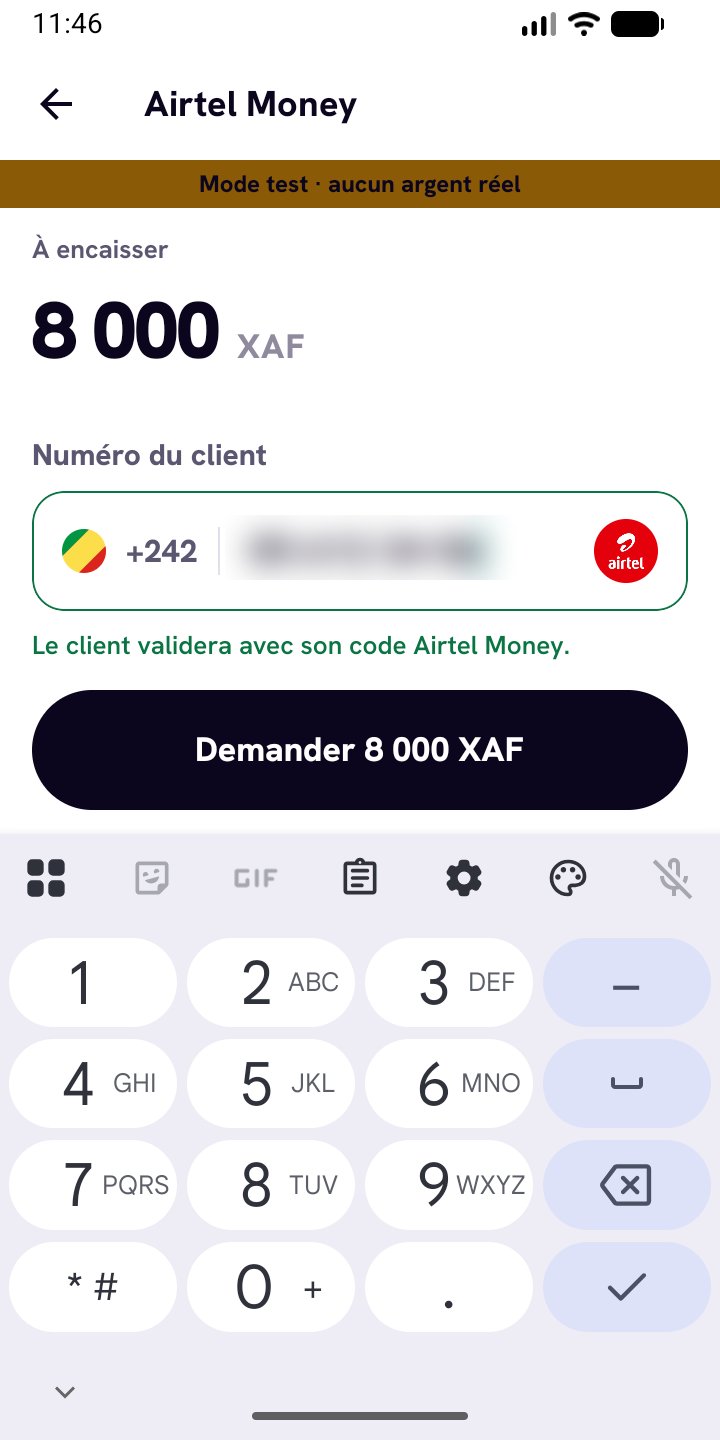
On-screen QR (dynamic QR)
If the customer prefers to scan, choose QR code: the terminal shows a QR for the exact sale amount, different for every sale (unlike the counter QR, which is permanent with an open amount). It stays valid for a few minutes; “Annuler” does not close the sale, the QR remains payable until it expires. The terminal detects the payment by itself and prints the receipt.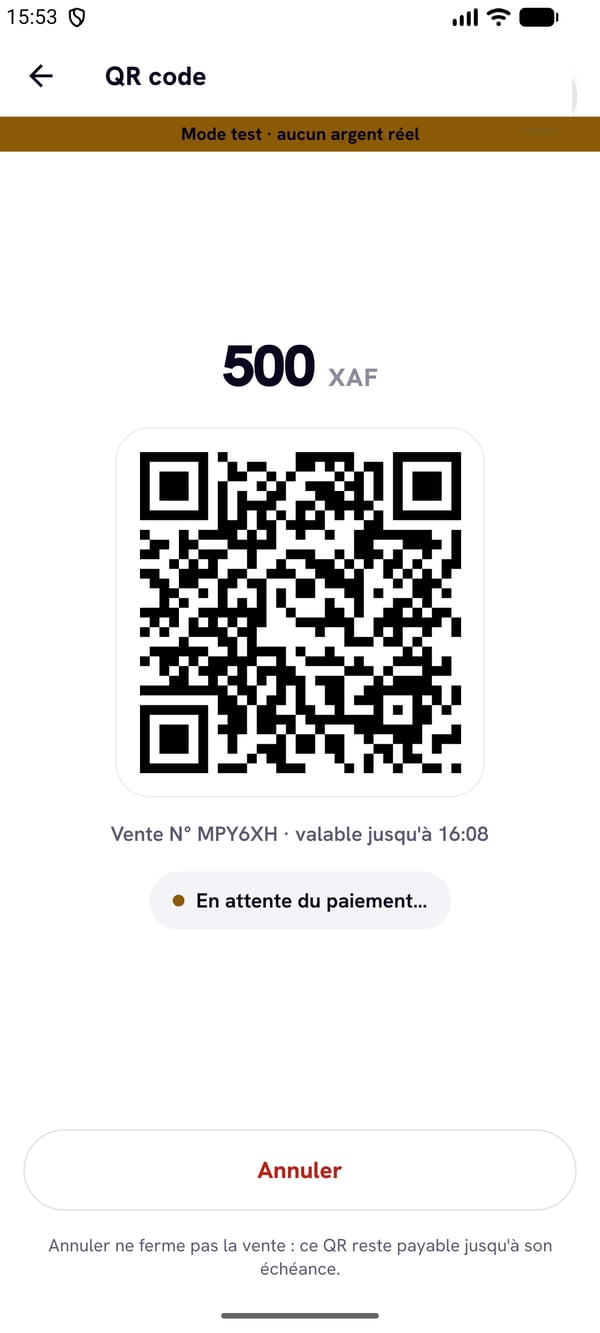
Terminal modes
A terminal paired from your Yabetoo account (dashboard or Yabetoo Business) runs in normal mode: open amount and catalogue, Mobile Money or QR payment, no cash and no till to close. It takes payments right away, nothing to configure. Restaurants pair their terminals from Takumi: the terminal then follows the venue’s mode (quick service, table service, bar or digital menu), with cash, tables and kitchen.Refund a sale. Open the Ventes tab, tap the sale, then Rembourser: a manager’s PIN is required, and the money goes back to the original payment method. Keep the receipt: it is required for any refund.